I built my own local AI assistant: a dashboard that knows what I need to do today
 · 6 min read
My workday is scattered across ten tabs. The CRM with tasks and invoices, Outlook, Teams, the calendar, server notes, proposals. Every morning the first half hour went into putting together one answer: what do I need to do today, and what’s on fire.
I already had the assistant itself: Claude Code, which knows my goals, tasks and notes. It just lived in the terminal. So I decided to give it a face: a dashboard that looks a bit like something out of a sci-fi movie. Technically it could have been much simpler, but a screen you open every morning should be a screen you enjoy opening.
The result is one screen that opens when the computer starts, shows everything important and lets me ask the AI assistant questions by voice, in Latvian. The first version took one day.
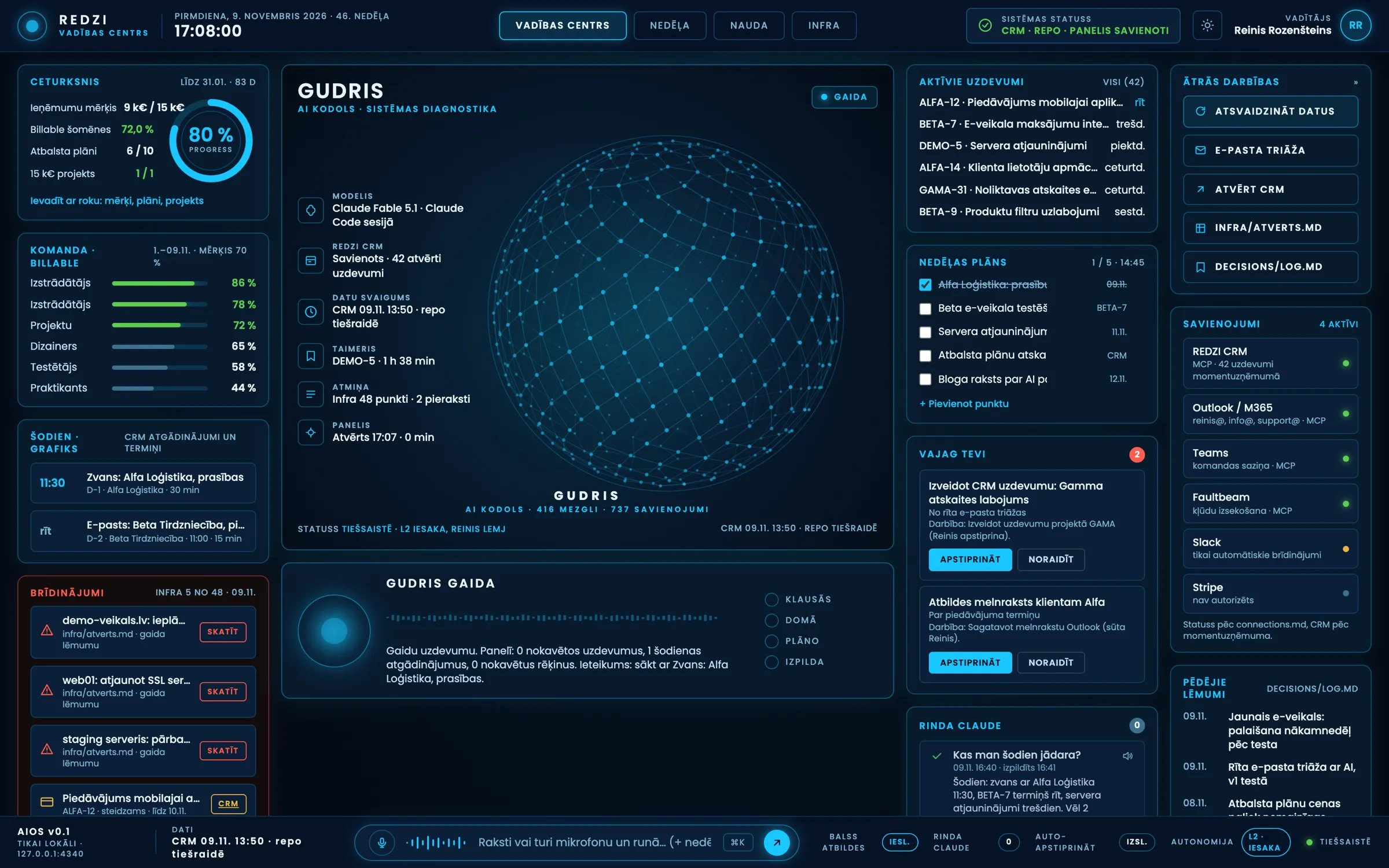
The clients, tasks and numbers in the image are made up. The real dashboard looks the same, just with my data.
What’s on the screen
The dashboard is split into blocks, and each one has one job:
- Quarter. My three quarterly goals and progress in percent towards the deadline.
- Team. What percentage of each team member’s logged hours this month is billable.
- Today. Calls, meetings and deadlines from CRM reminders.
- Active tasks. My tasks by due date, most urgent on top.
- Weekly plan. A short checklist I can edit right in the dashboard.
- Alerts. Open infrastructure items waiting for a decision.
- Needs you. Things where the AI has prepared an action but won’t do anything without my “yes”.
- Recent decisions. What I decided in the last few days and why.
In the middle is the AI core: a sphere of nodes that slowly rotates. When the assistant is thinking, a trail of light runs across it. Functionally it adds nothing, but I can see at a glance whether the assistant is listening, thinking or carrying out a task.
How it’s built
Everything is deliberately simple. The server is a single Python file with no extra libraries, and the interface is three static files: HTML, CSS and JavaScript. No build step, no database, no cloud.
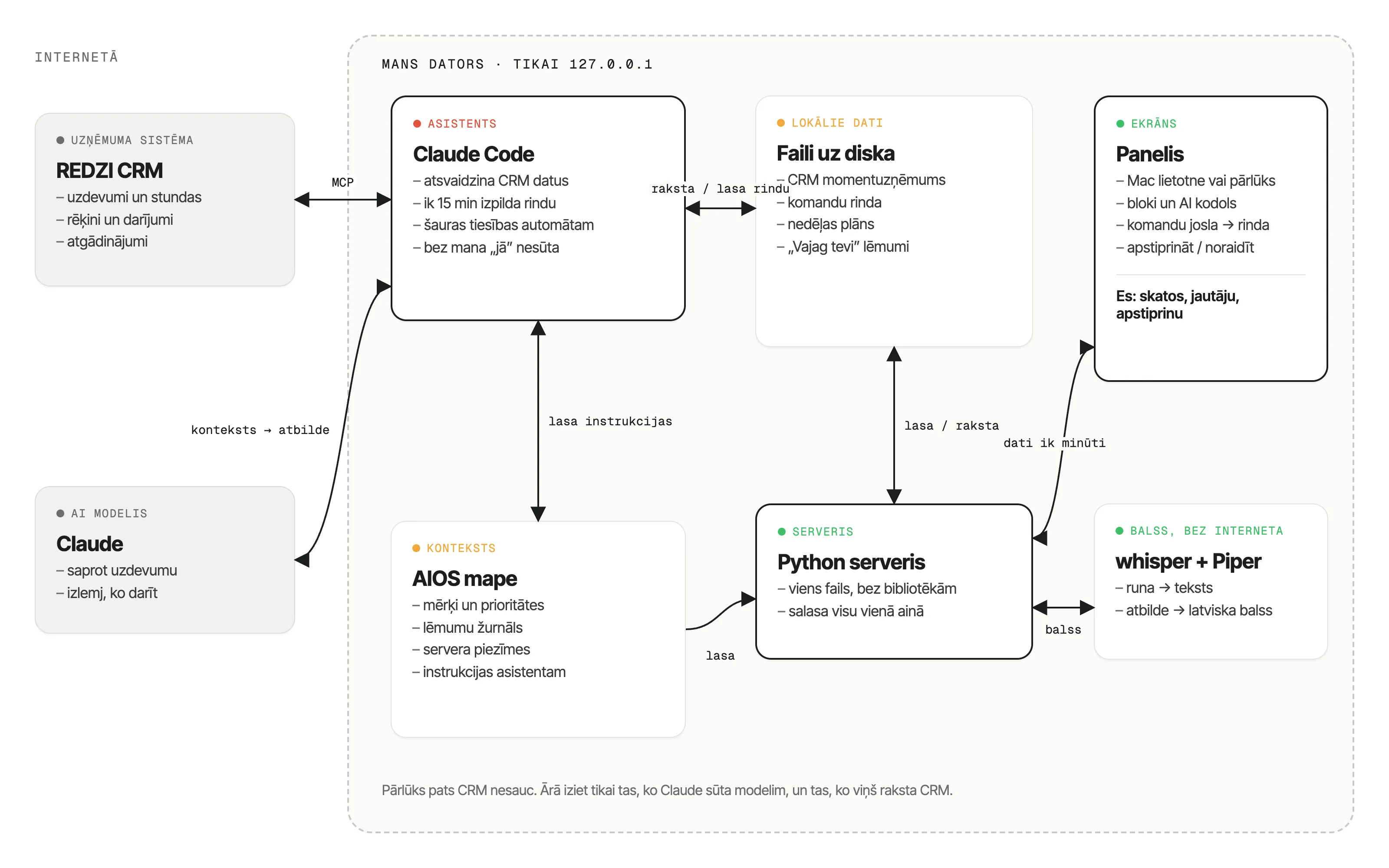
The diagram reads from right to left:
- The dashboard is what I see. Every minute it asks the server for the latest snapshot and sends back my questions, checkboxes and approvals.
- The Python server pulls everything into one snapshot: my files and locally stored data. It’s the only thing the dashboard talks to.
- Files on disk sit between the dashboard and the assistant. That’s where the CRM snapshot, the command queue, the weekly plan and my decisions live.
- Claude Code is the only part that reaches outside the computer. Through MCP it reads and writes the CRM, hands the task to the Claude model and writes the result back into the files.
- Voice runs fully locally. The server passes the recording to whisper and the answer to Piper, and nothing goes to the internet.
The data comes from two sources:
- My files. For a while now I’ve kept a folder I call my AI operating system. It holds my goals, a decision log, server notes, meeting notes and instructions for the assistant. The dashboard reads them straight from disk on every refresh.
- The CRM. Tasks, hours, deals, reminders and invoices. One important detail here: the browser never calls the CRM. Claude fetches the data through an MCP connection and saves it locally as a snapshot. The dashboard shows how fresh the data is and warns me if it’s older than six hours.
To keep it always at hand, it starts in the background when the computer boots and opens like a regular Mac app, in its own window with its own icon.
Voice in Latvian, without the internet
macOS doesn’t speak or recognise Latvian on its own. So the voice part runs locally:
- speech recognition with whisper.cpp (the
large-v3-turbomodel); - speech with Piper and the Latvian voice “Aivars”.
Hold the microphone button, ask “what do I need to do today?” and let go. The recording never leaves the computer. It works well for short, clear sentences. Company names sometimes need fixing by hand.
Simple questions get answered right away, without involving the AI at all: what’s due today and tomorrow, what’s overdue, how many hours are billable, which invoices are unpaid, what’s in the weekly plan. The answer appears on screen and is read out loud. For lists you can say “next”.
Command queue: type it, and Claude does it
At the bottom there’s a command bar. I can type something like “create a CRM task: prepare the acceptance report by Friday”. The entry goes into a queue, and every 15 minutes during working hours Claude picks it up and runs it: it creates a task or a reminder, or writes down a note. The reply shows up in the dashboard.
This is the part where I thought about security the most. The automatic mode has a very narrow list of tools:
- it may read the CRM and create a task or a reminder;
- it may write to only two note files;
- code folders, password files, the network and sending email are off limits;
- it won’t run an unclear entry, it replies “Can’t:” with an explanation.
The reason is simple: text typed into the queue must not be able to make the AI change code or permissions. Anything that leaves my folder, an email to a client for example, goes into the “Needs you” block and waits for my approval.
Why local only
The dashboard shows client names, invoices and team hours. Data like this has no business sitting on a public server just so I can look at it in a nicer layout. So:
- the server listens only on
127.0.0.1and accepts requests only from the dashboard itself; - CRM data is stored locally and never ends up in the git repository;
- there isn’t a single password or key in the repository;
- voice processing happens on the computer.
If the computer is off, the dashboard doesn’t exist. That works for me.
What I learned
Design wasn’t the important part. Design took little time. Most of the time went into deciding where the data lives and what the AI is allowed to do without me.
An AI assistant needs context, not more tools. The dashboard is useful only because there are organised files behind it: goals, decisions, notes and instructions. Without them it would be just another pretty screen.
Approval is a feature, not an obstacle. Most useful actions are preparation: a task, a draft, a reminder. I keep the last click for myself, and that’s exactly why I can trust the AI with more.
The next step is morning email triage: the assistant goes through my inbox in the morning, sorts it by importance and shows only what I need to reply to in the dashboard.
If you’re thinking about a similar tool for your company, whether it’s an internal dashboard, an AI assistant for your team or a connection to your CRM, write to me.